GPT Image 2.6 turns your brief into images ready for the next step
Create campaign visuals, refine product photos or explore animation with GPT Image 2.6. Begin with a brief or references, choose a version, and export a format that fits your next design step.
Describe an image or refine your references.
Choose Model
Workflow
0/32000 characters
Estimated credits: 8. Estimated credits are reserved first. The final charge follows actual usage; extra reserved credits are released. If more are needed, your result is kept until you top up.
More settings
One GPT Image 2.6 workspace, three ways to work
GPT Image 2.6 on Nano Banana Pro combines image creation and reference-guided editing. Describe the subject and exact text, or identify what must stay unchanged. Choose the output around its destination.
Choose your GPT Image 2.6 version
Match the version to this task while keeping your prompt and references as the starting point.
Flare: explore the direction
Use GPT Image 2.6 Flare to explore posters and product compositions. Compare framing before committing to a direction.
Sunburst: refine the image
Choose GPT Image 2.6 Sunburst for deliberate revisions. Specify the detail to change and the subject or lighting to preserve.
Economy: keep a simple output
Use Economy for simpler 1K work. Create PNG images, edit from references or explore GIFs in text mode.
Take GPT Image 2.6 from concept to delivery
A product cutout, animated idea and vector asset need different settings. Plan the format around the handoff.
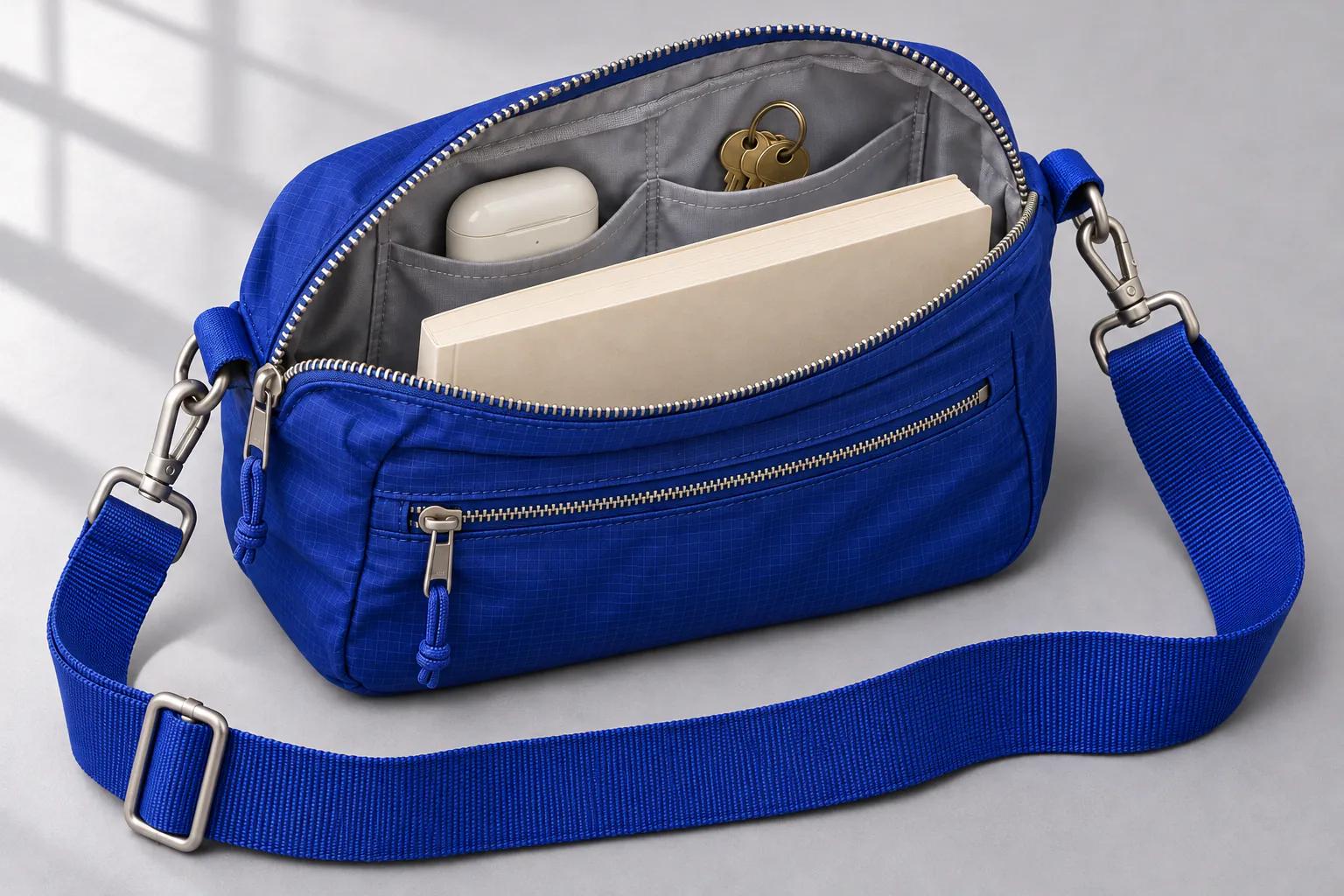
Build from several references
Combine up to 16 references. Identify each image by order and explain its subject, palette or composition.
Direct a local revision
Flare and Sunburst accept a mask or transparent PNG markup. Choose one and describe the local change.
Choose the useful file format
Choose PNG, JPEG or WebP for raster work. GPT Image 2.6 Flare and Sunburst also offer GIF and SVG.
Shape a short animation
Set GIF frames, timing and dimensions. Begin with a repeatable action and inspect the loop before publishing.
Why choose GPT Image 2.6 for this project?
Keep the brief connected to the edit
Reuse a useful result as a reference. Carry specific decisions forward instead of rewriting every instruction.
Plan the handoff early
Check lettering, edges and transparency at the final display size. Select raster, animation or vector output early.
Make each revision intentional
Change layout, background or detail one at a time. Keep the creative brief understandable as you compare versions.
Create with GPT Image 2.6 in four steps
Use a precise brief, then check the file against its intended placement.
- 1
Describe the result
Tell GPT Image 2.6 the subject, layout and light. Put exact visible text in quotation marks.
- 2
Add the right references
Identify each reference’s role. State what should stay unchanged before describing the revision.
- 3
Select version and format
Choose a version, size and format. Review estimated credits before starting.
- 4
Inspect and continue
Check spelling and fine detail. Download the file or guide another edit with the result.
A second pass with GPT Image 2.6: make the poster readable
A night market poster can look finished at full size and still fail on a phone. Keep the first GPT Image 2.6 result beside the revision, then make these three checks before you share it.
Read the headline at feed size
Shrink the poster to the width it will have in a feed. If the lettering breaks up, ask GPT Image 2.6 for the exact words “NIGHT MARKET” on one line and a plain, dark area behind them. Check the letters against your brief.
Test the crop before moving the subject
Put the draft in its final frame. If the crop clips the stall or the date, ask for more space above the stall while keeping the lanterns and headline in place. Compare both drafts in the same frame.
Stop when the message reads at a glance
Look away, then glance back. Can you tell what the event is and when it starts? Keep the clearer version. If the date is still wrong after a focused GPT Image 2.6 edit, leave space and add the final text in your layout tool.
GPT Image 2.6 questions, answered
Which GPT Image 2.6 version should I choose?
Choose Flare for visual directions, Sunburst for detailed revisions, or Economy for simpler 1K output. Compare against your own brief.
Can GPT Image 2.6 edit my images?
Yes, with up to 16 references. Flare and Sunburst also support a mask or markup for local guidance, but not both together.
What can I export from GPT Image 2.6?
Flare and Sunburst offer PNG, JPEG, WebP, GIF and SVG. Economy offers PNG, plus GIF in text mode.
How are generation credits charged?
Economy PNG costs 8 credits. Other options reserve an estimate, then settle against actual usage. Extra credits are released; results wait safely if you need to top up.
Can I make a transparent background?
Choose a compatible format such as PNG or WebP. Check the downloaded alpha channel and edges before using the image in a design.
Does choosing 4K always mean 4096 pixels?
No. GPT Image 2.6 dimensions depend on aspect ratio and resolution tier. Check the exported dimensions against your final placement.
Bring your next idea to GPT Image 2.6
Start with one clear brief, choose the right output and build from the result.
Create an image