
Seedream 5.0 Flash
Seedream 5.0 Flash: Shape the Next Campaign
Seedream 5.0 Flash AI image generator for product visuals, campaign drafts, and rapid creative iteration
Turn a product brief into visual routes for launch pages, ads, and social posts. Move between prompts, reference edits, and image layers as the concept develops.

Choose Model
Workflow
0/5000 characters
Results

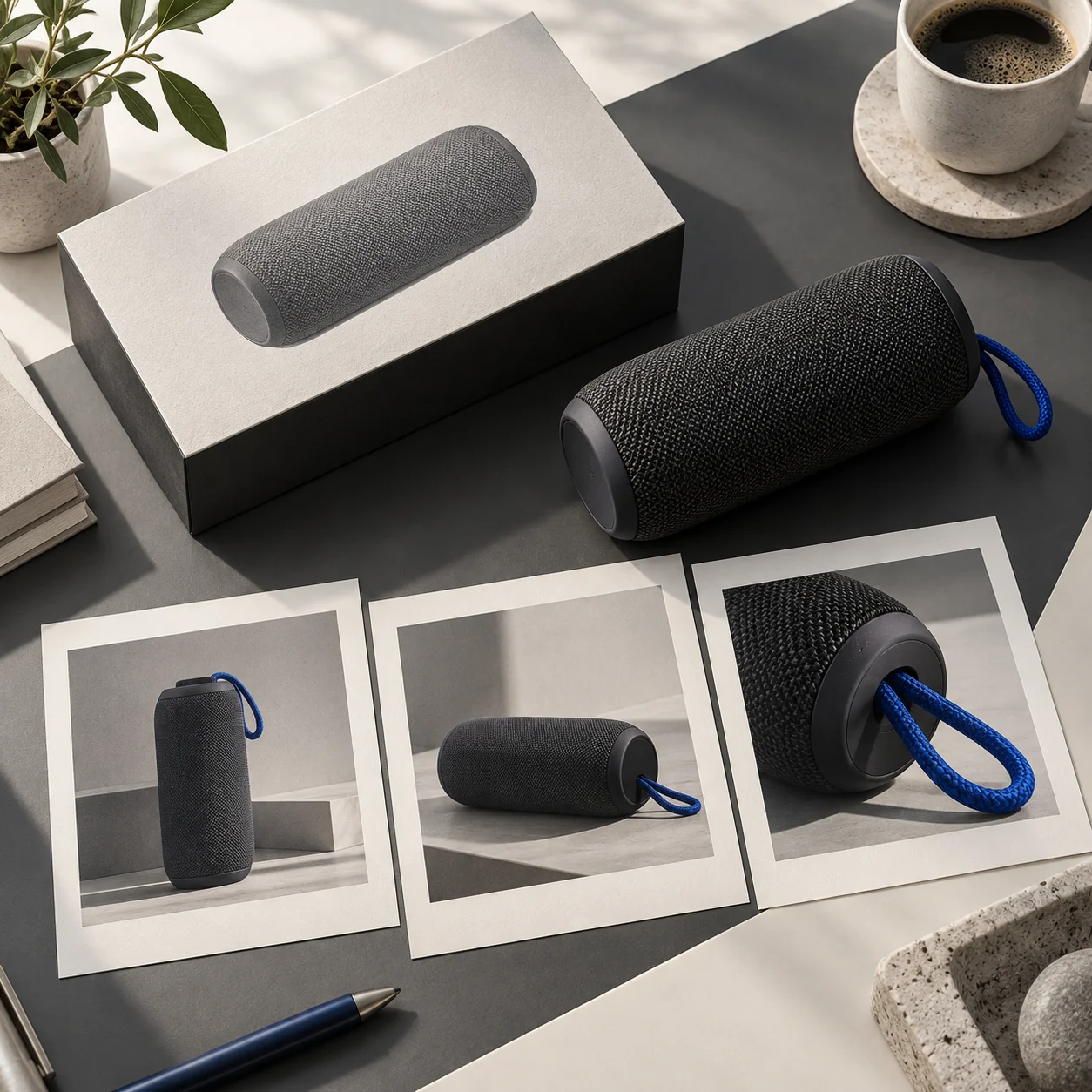
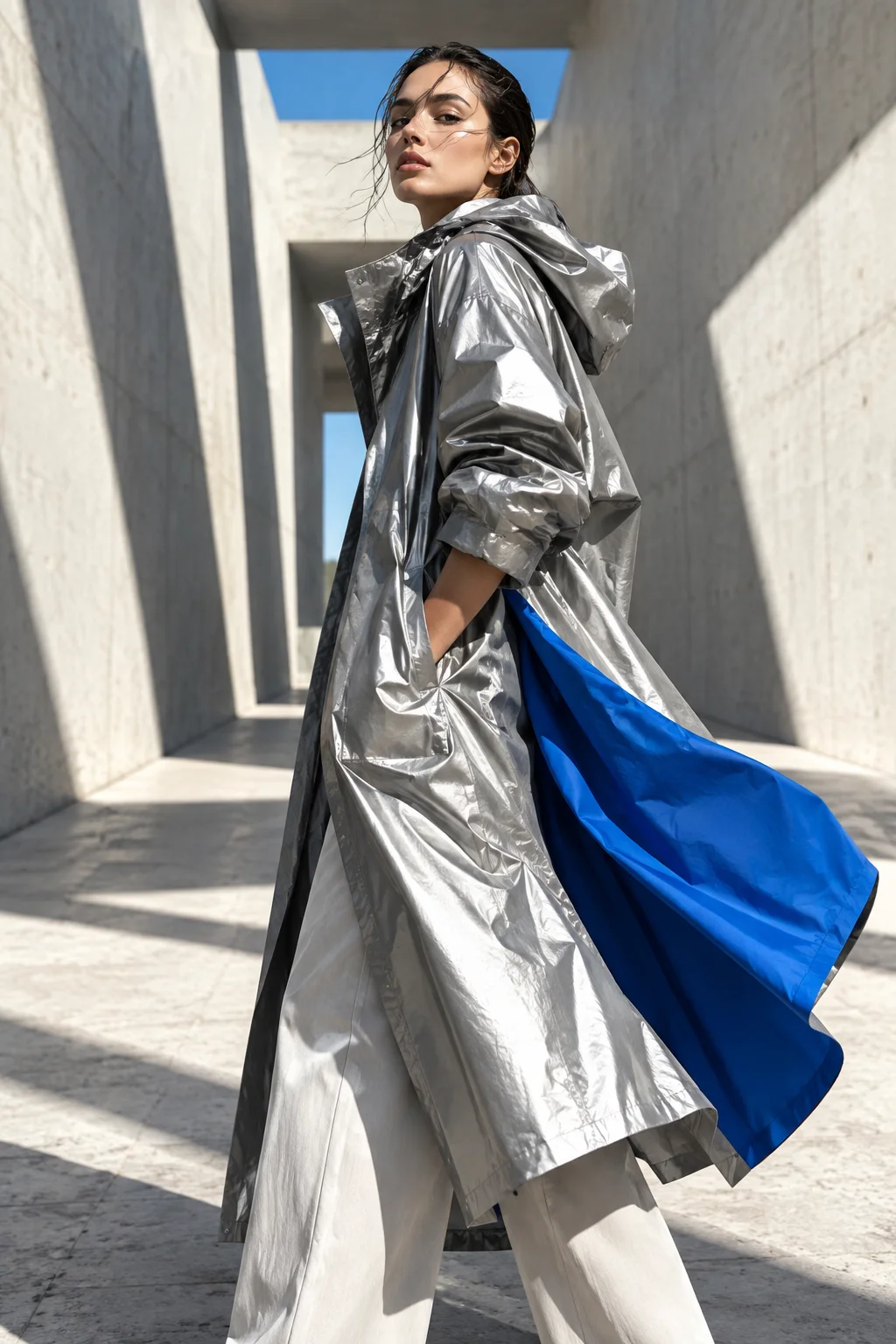



5 credits per task
What is Seedream 5.0 Flash?
Seedream 5.0 Flash puts text-to-image, reference editing, and layer separation in one creative workflow. Use it to test a visual direction before final production.
Editable image layersRapid Prototyping
Quick mockups for client presentations and pitches
Prepare prompts and references
Use up to 10 reference images to steer styling and composition.
Editable image layers
Upload one image and separate its elements into independent layers for a more flexible editing workflow.
Reliable Prompt Adherence
Define the subject, framing, mood, and important details before generating.
Creative workflow directions
Original visual concepts for product, fashion, and campaign work.
Where Seedream 5.0 Flash fits
Useful for quick campaign, product, and content concepts.
Social Media at Scale
Create platform-specific visuals for Instagram, TikTok, and X
E-Commerce Visuals
Bulk lifestyle product photography with varied backgrounds
Product and marketing visuals
Develop campaign boards, product concepts, posters, and localized creative directions.
Portraits and editing
Plan realistic portraits and apply targeted changes through visual or spatial guidance.
How to Use Seedream 5.0 Flash
A clear brief helps any supported image model produce more useful results.
Define the output
State the audience, format, visual hierarchy, language, and final use.
Write Your Prompt
Describe subject, composition, style, text, and precise edits; add references when supported.
Generate variations
Generate multiple variations to explore creative directions
Generate and refine
Review structure and details, then revise the prompt or target specific areas for editing.
Seedream 5.0 Flash FAQ
Yes. Use the Seedream 5.0 Flash generator on this page for text-to-image creation or switch to image-to-image mode with reference images.
Choose an available model, enter a prompt, and generate. To edit an image, switch to image-to-image and add a reference.
Create product scenes, ad directions, social visuals, and content covers. Begin with a written brief or refine an existing image with references.
Yes. Open Layer Decomposition, upload one image, and add optional instructions.
Write a specific brief and generate a draft. Add reference images to guide an edit, or open the dedicated layer tool to separate an existing image.
Each text generation, reference edit, or layer separation task uses 5 credits.
Start creating images
Use the Flash generator on this page to explore your first direction. Add references or split an image into layers when the concept needs more control.