
Second engine, same studio
Seedream 5.5 AI Image Generator
Write the brief, attach references, review, change one thing. Seedream 5.5 works next to Nano Banana Pro, so you can choose the engine that suits each brief.
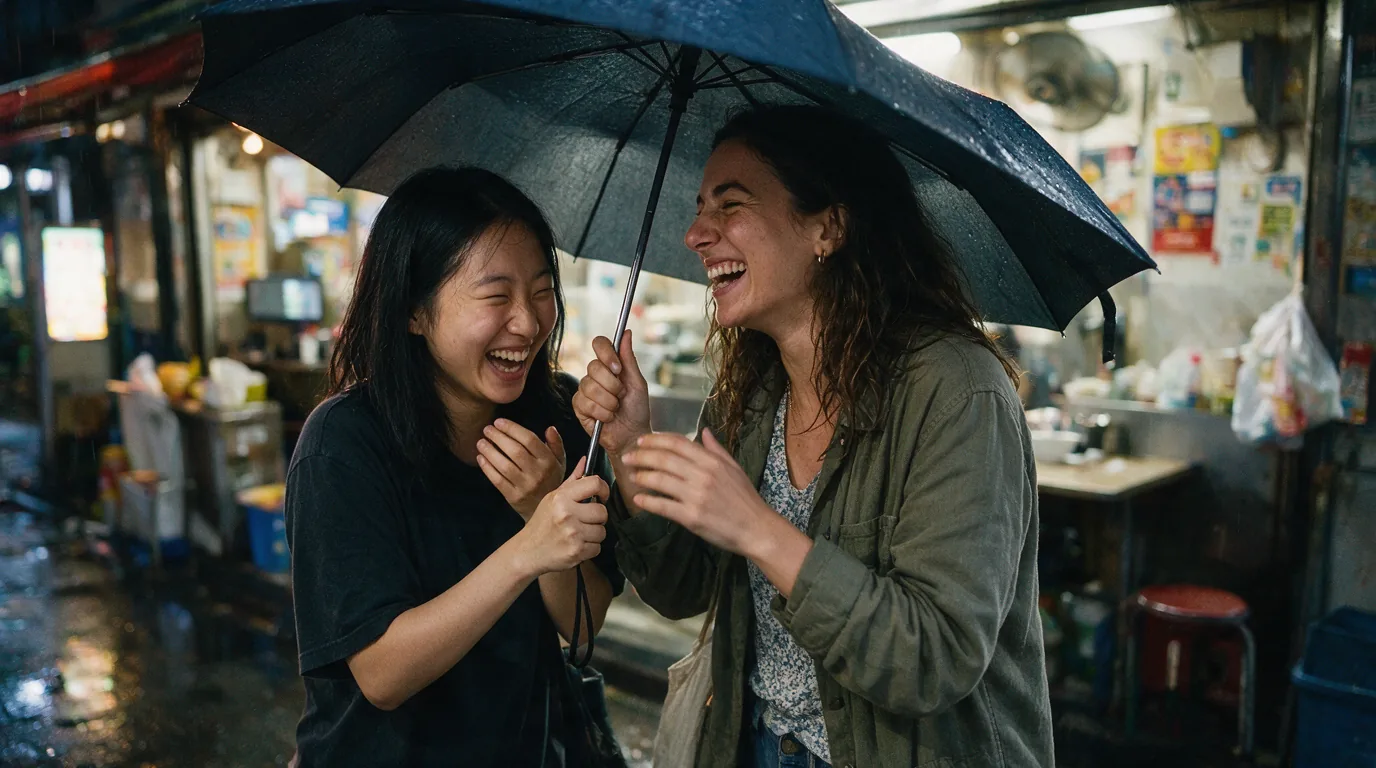
Choose Model
Workflow
0/3000 characters
Results
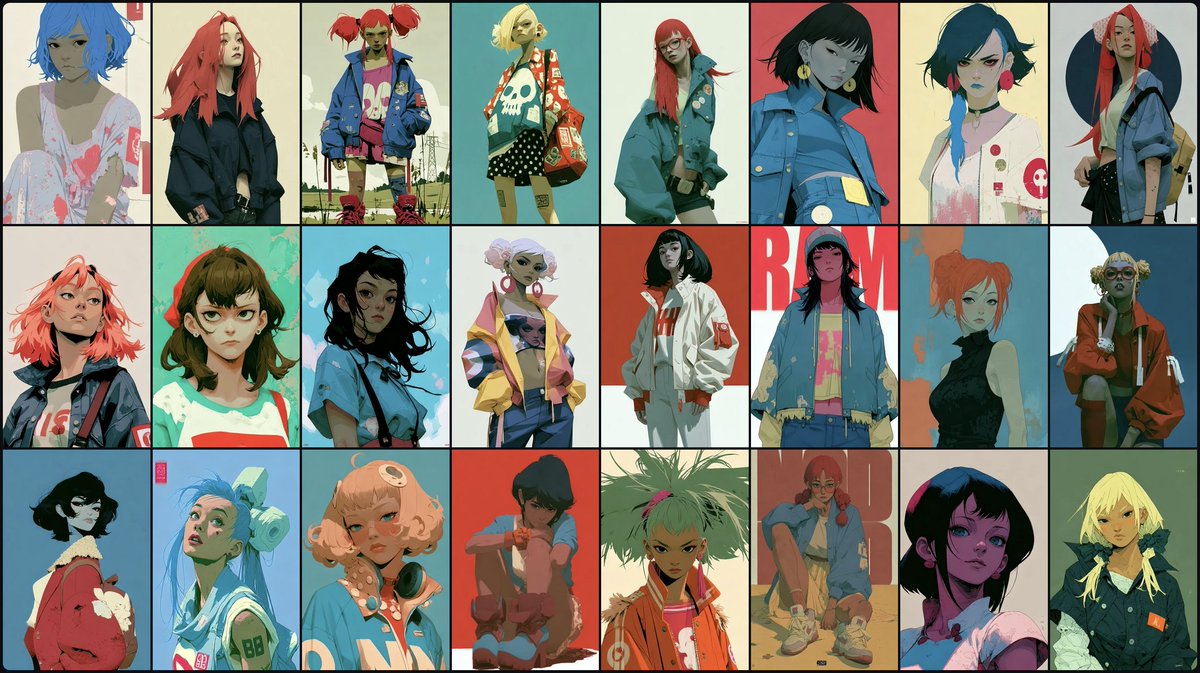
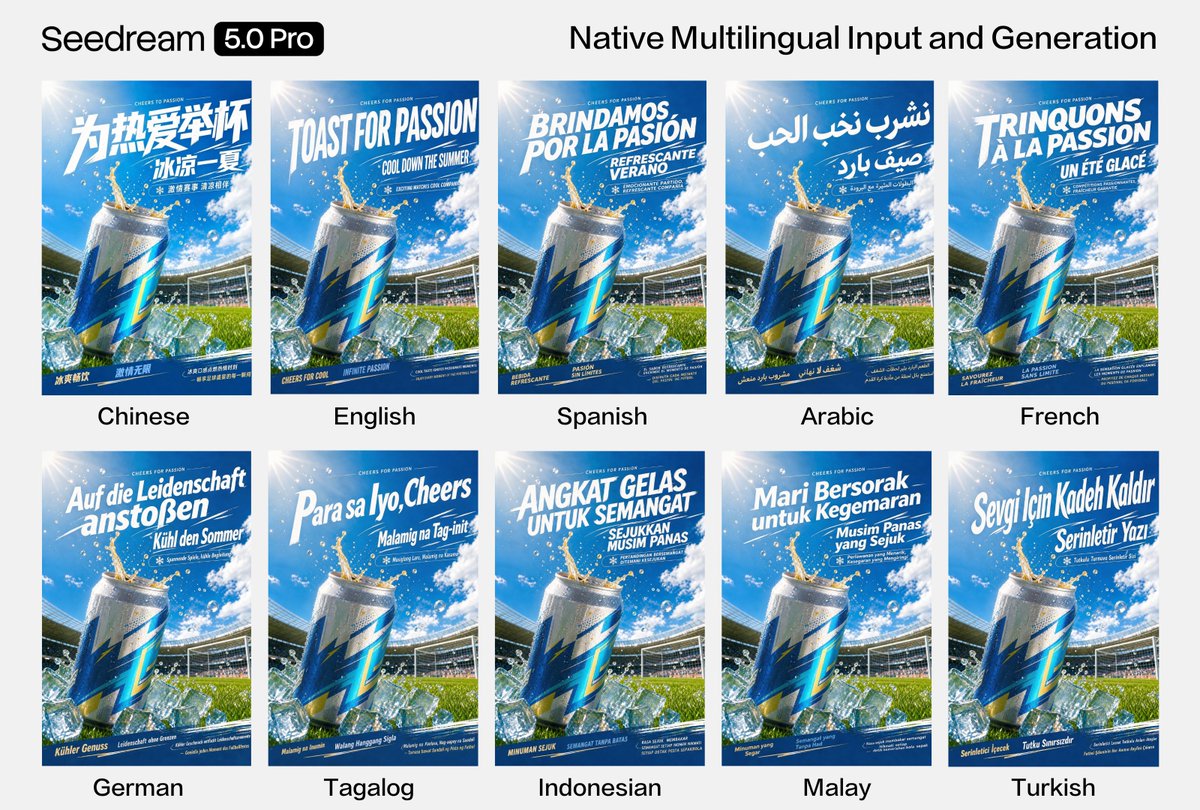
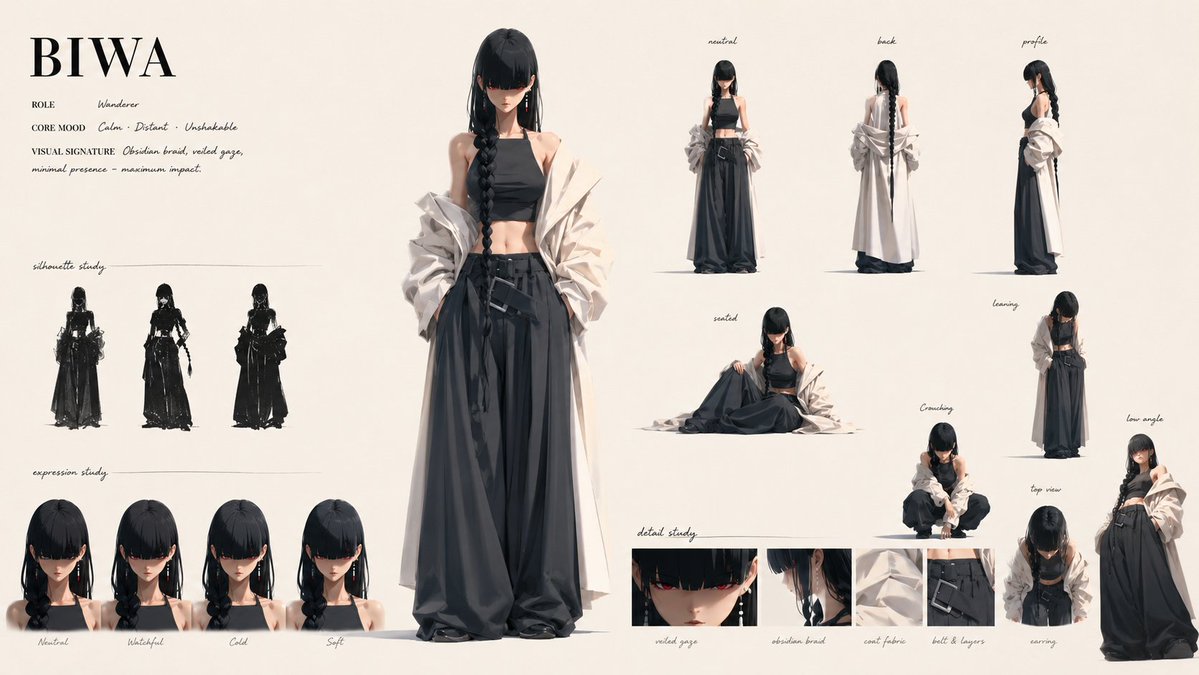
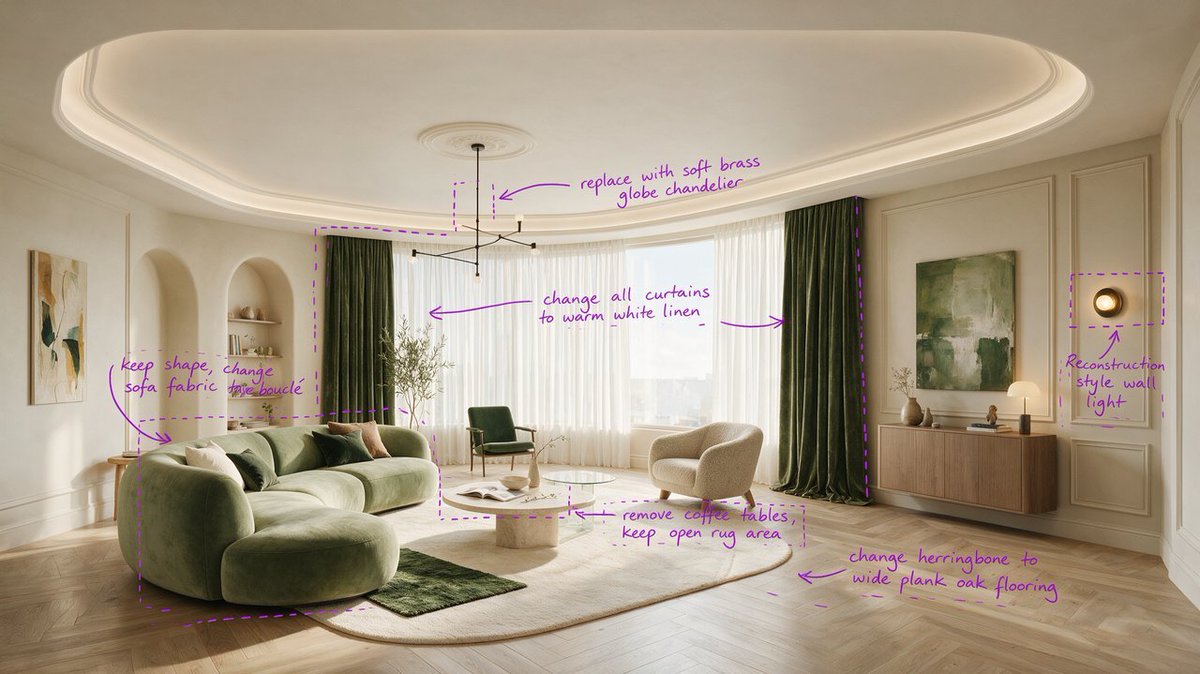

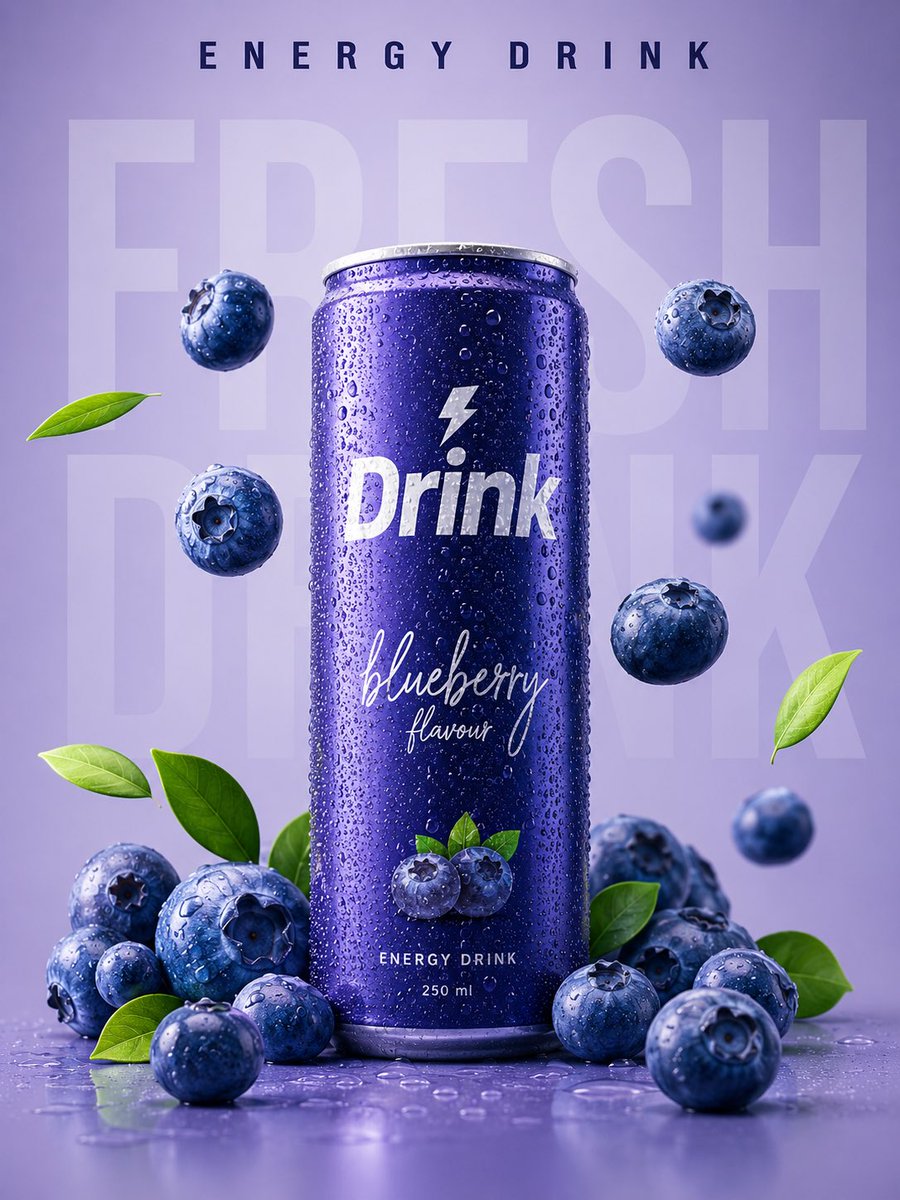
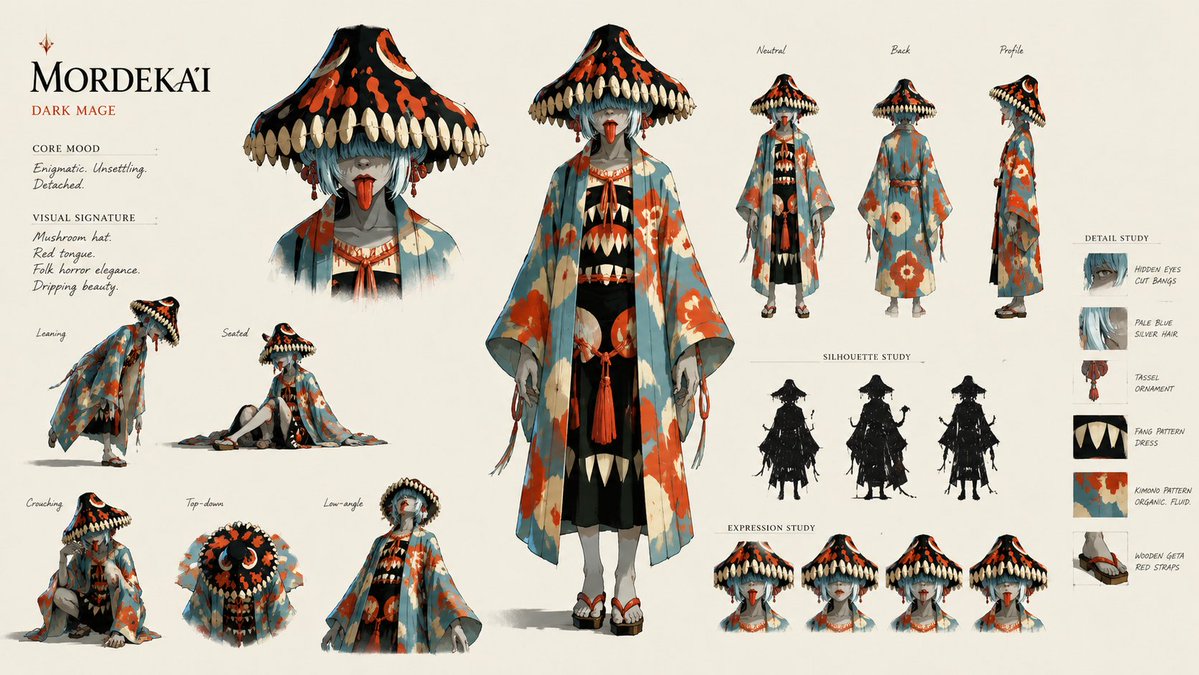
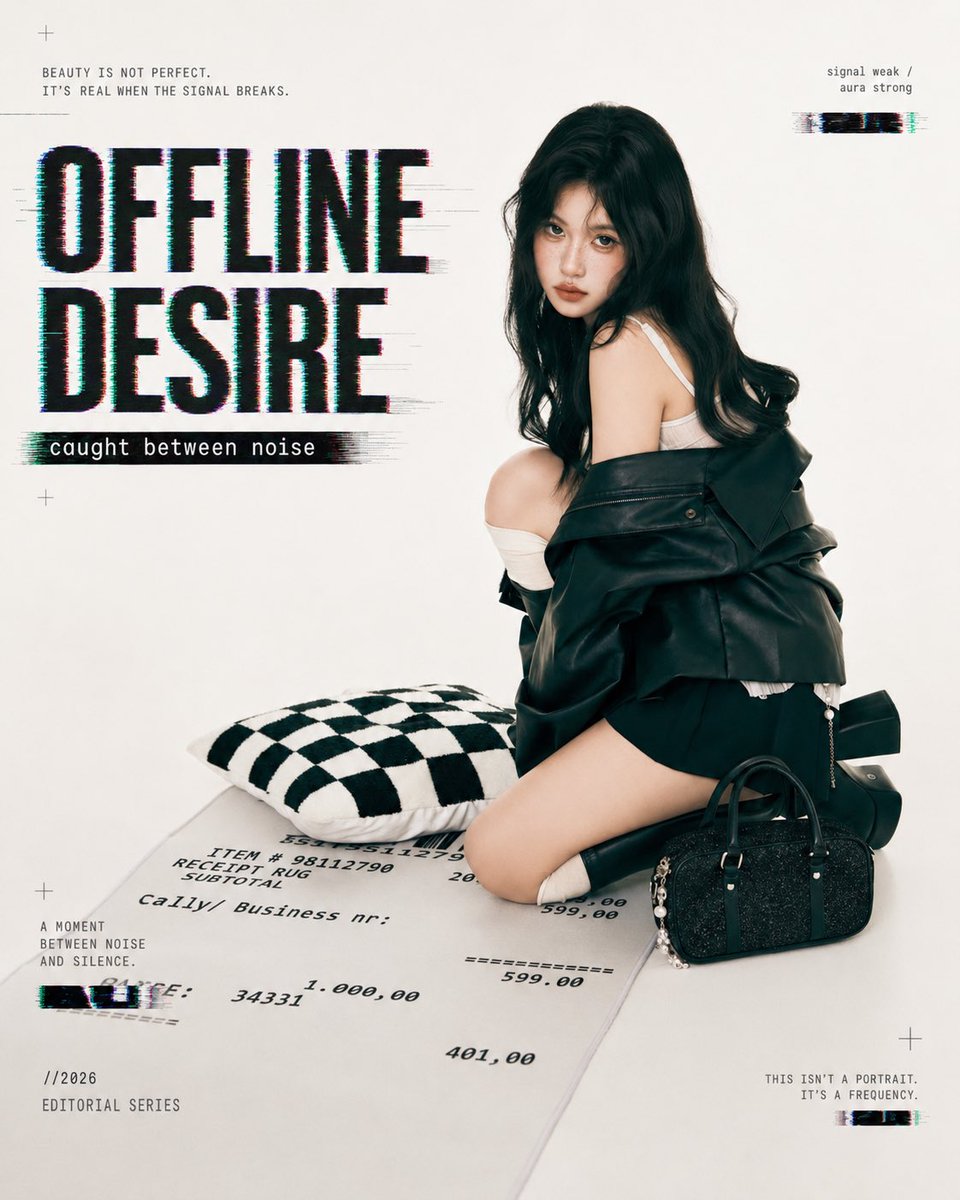
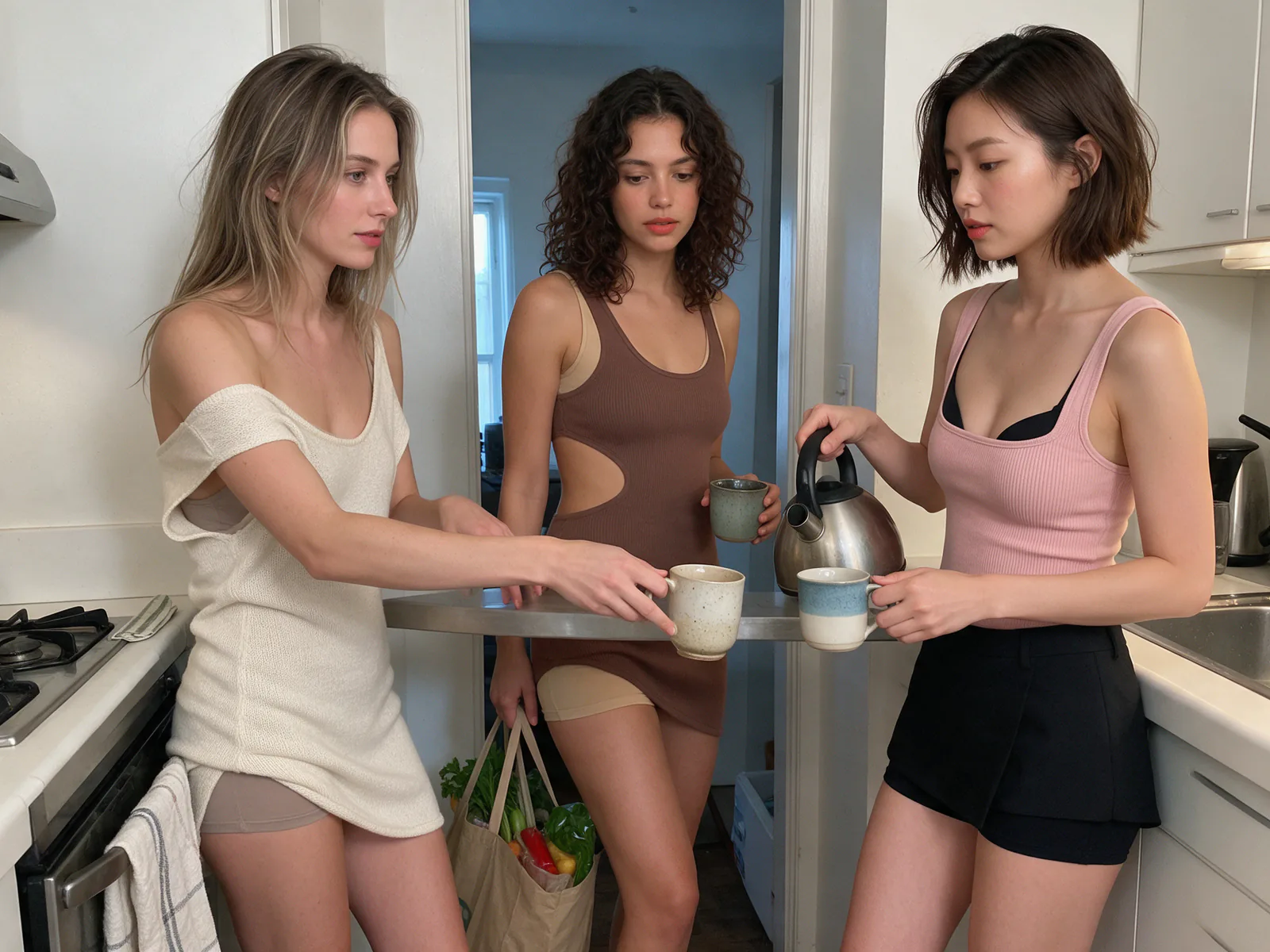
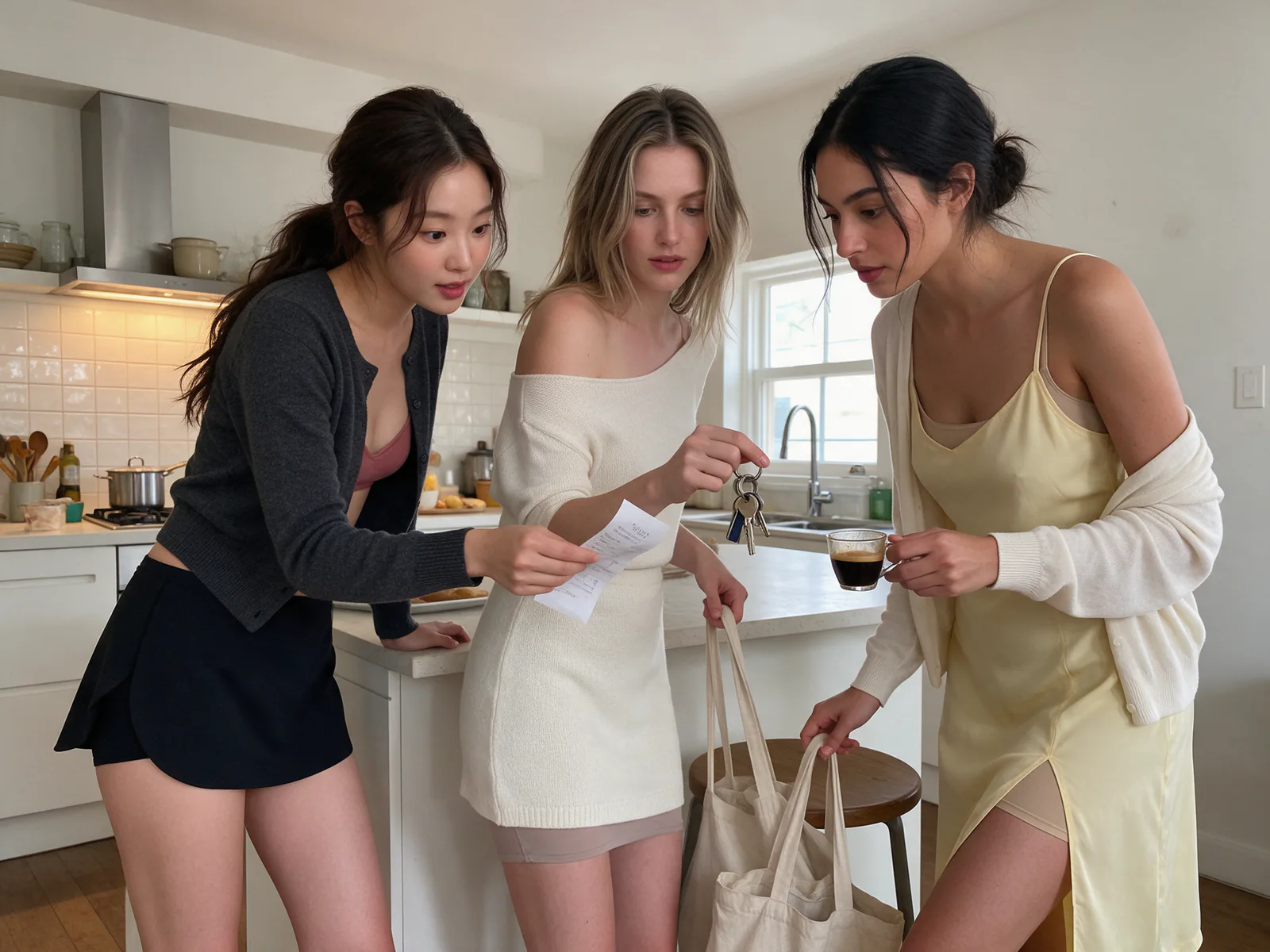
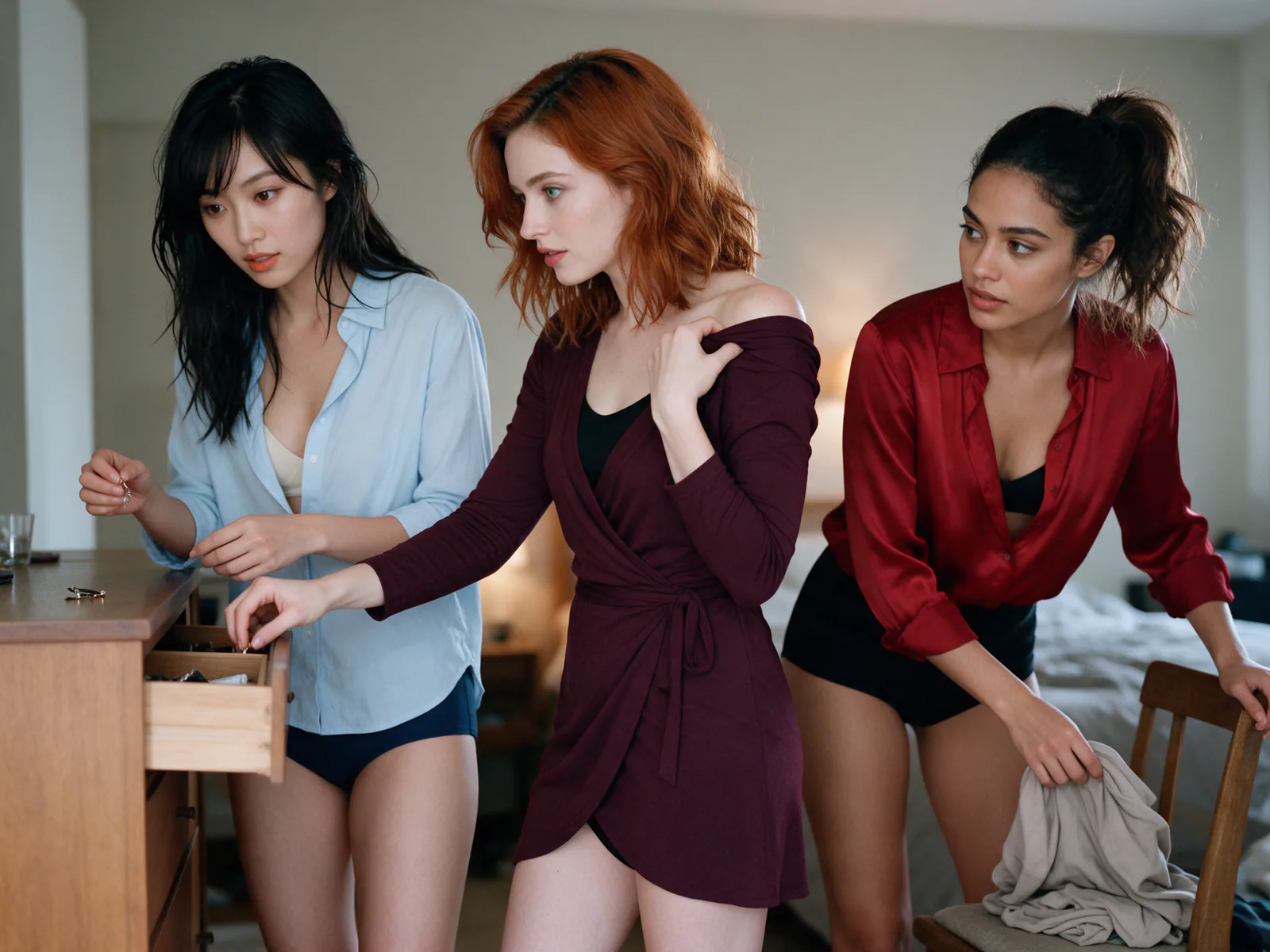
TL;DR
- Seedream 5.5 AI Image Generator is available in the Nano Banana Pro studio as a separate Seedream option.
- Lead with edit discipline: name the failed decision, change only that, compare.
- Add references when product, outfit, face, or palette must stay fixed.
- Nano Banana Pro keeps its own Gemini-based story on its home page. Seedream 5.5 is a separate Seedream model option.
- For Seedream 5.0 Pro, Flash, or layer workflows, open those pages by name.
What is Seedream 5.5?
Seedream 5.5 is an image model available in the Nano Banana Pro studio as a separate Seedream option. Its pages teach one loop: brief, references, review, one change. Nano Banana Pro is described on its home page with the strengths of Gemini 3 Pro Image, while Seedream 5.5 is not powered by Gemini. It sits in the same studio as Nano Banana 2, GPT Image, and the Seedream 5.0 pages, and you pick the engine per brief.
Why two engines in one studio? Because not every brief suits every engine. Some requests land almost right on the first pass in Nano Banana Pro; others need fewer fixes with a different model. Rather than arguing about which is better, switch between them and let the result decide.
The generator page is for creating, reviewing, and refining, and Seedream 5.5 features holds the use-case guide. Product marketers, catalog operators, and designers use the generator when they want a Seedream brief loop without leaving the studio. Educators and slide authors use it when a deck needs a clean visual idea with title space. Game and concept teams use it for stills that must stay original and free of third-party IP.
The discipline matters more than the prompt. Find what missed, then change only that. Name the things in the frame plainly, a canvas sneaker, a rain-dark street, a single neon sign, and keep version labels short so a teammate can pick up the next pass on their own.
Refine one decision per pass
On the studio we lead with edit discipline, because teams often bounce between engines. When a generator pass misses, name the failure first: background, light spill, crop, clutter, palette, or subject hierarchy.
Change only that instruction. Generate again. Compare the two frames. If the change helped, keep it. If not, step back. This habit matters when you later try the same brief in Nano Banana Pro or another model: you learn which failures are brief problems and which are engine preferences.
Avoid rewriting the whole prompt every time. Whole rewrites reintroduce the same mistake with new adjectives and make A/B comparison useless.
A practical rescue order for the generator on this studio: hierarchy, framing, light spill, clutter, palette. Example: a sneaker listing where the street backdrop steals attention. Keep the sneaker lock. Change only backdrop quietness or crop. Example: a poster where the model is sharp but headline space collapsed. Keep the model. Change only negative space on the left.
When you later try Nano Banana Pro on the same brief, bring the same checklist. You will learn whether the brief was unclear or the engine preference differed. That comparison is why the studio keeps multiple labeled models.
Lock what must stay with references
Attach a product shot, outfit photo, or approved palette board when identity must hold across passes. In the generator, write one sentence for what stays and one for what changes.
Examples: keep the sneaker geometry, change the street backdrop; keep the jacket color, change the studio light; keep the bottle label layout, change the surface. References are strongest when they are specific. A vague mood board without priority wastes a pass.
Each engine reads references on its own, so re-attach them and restate what stays whenever you switch engines.
Pick references the way you would brief a photographer. A clean, evenly lit product shot on a plain background works better than a screenshot of a finished ad, because ad layouts mix in text and effects that blur what the product actually looks like. For outfits and faces, a front view in soft light is the safest primary reference. If you only want to borrow a lighting mood, say so: use the reference for light only, not for content. And never swap the reference and rewrite the text in the same pass, or you will not know which change moved the frame.

From brief to frame
Four steps keep the generator predictable next to the other tools in the studio.
Example brief for an ad poster in the generator: primary subject a runner mid-stride, supporting elements wet asphalt and a soft city glow, light hard side key, detail that matters a left third empty for a headline. Generate. If the empty third fills with props, delete prop classes on the next pass only. Leave the runner description alone unless the runner itself lost hierarchy.
1. Write the brief
Subject first, then scene, light, and the one detail that decides success for this pass.
2. Pick format by placement
Listing tile, slide, banner, or square social. Format before composition.
3. Generate and review
Judge hierarchy, framing, light, and clutter against the brief, not against taste alone.
4. One change, then compare
Edit a single decision. Keep a trail of versions you can return to.
Practical questions
Seedream 5.5 questions
Answers about using Seedream 5.5 in the Nano Banana Pro studio.
Generate from a written brief, keep identity with references, and refine one decision at a time for listings, slides, concepts, and ad posters in the generator.
Add references whenever a product, outfit, face, or palette must stay the same across passes. Describe the change in plain words. Skip them when identity is still open.
A single change per pass makes the effect visible and keeps a clean way back to the version that worked. It also helps when you compare the same brief in another engine later.
Seedream 5.0 Pro has a dedicated page for its own workflow. Seedream 5.5 pages are about the brief-to-frame loop and use cases. Compare on the Seedream 5.0 Pro page before choosing.
Both are available. Try the same brief in each and keep the engine whose first pass needs fewer fixes. The Nano Banana Pro page explains its own strengths. The generator explains the brief-to-frame loop.
No. Gemini 3 Pro Image is described as the basis of Nano Banana Pro on that product's pages. Seedream 5.5 is a separate Seedream model option on this studio.
Start your next brief with Seedream 5.5
Open Seedream 5.5 AI Image Generator, write one subject, and refine a single decision until the frame holds.